SMS consent (10DLC reference)
FrontDesk sends text messages only to its registered account holders (business owners and staff): owner-only booking and cancellation alerts to the business owner on the verified number in Business Settings. Staff members do not receive booking or cancellation alerts and cannot turn them on. The one-time code used to confirm a mobile number (owners and staff alike) is delivered by a separate phone verification service and is not part of this program. FrontDesk does not send text messages to businesses’ customers under this program. Opt-in is collected primarily on the public sign-up form, and users who opt in later can do so in Business Settings; the exact disclosure language and reference screenshots are below for carrier and registry review.
Opt in when creating an account
When creating a FrontDesk account on the public sign-up page at https://getfrontdesk.app/portal/index.html#register (or in the FrontDesk mobile app), users can opt in to text alerts by entering their number in the optional Mobile number for text alerts (optional) field and checking the separate, unchecked-by-default checkbox directly below it. Both the mobile number field and the consent checkbox are on that public sign-up form. The exact checkbox label text is:
The checkbox is optional and not required to create an account. If the box is checked, a valid mobile number (in the US, Puerto Rico or Canada) is required. Alerts are activated once the business owner confirms the number with a one-time verification code.
Step 1. Confirm your mobile number (Profile)
In Profile any signed-in user (owner or staff) enters their own mobile number and taps Send code. A separate phone verification service sends a single confirmation text at that user's request (this code is not part of the alerts program):
The user enters the code to confirm the number. This confirmation does not enable any alerts.
On Business Settings → Notifications (step 2), which only the business owner can change, the same field and code check appear directly above the alerts checkbox; the number entered and confirmed in that form is the only number alerts are sent to.
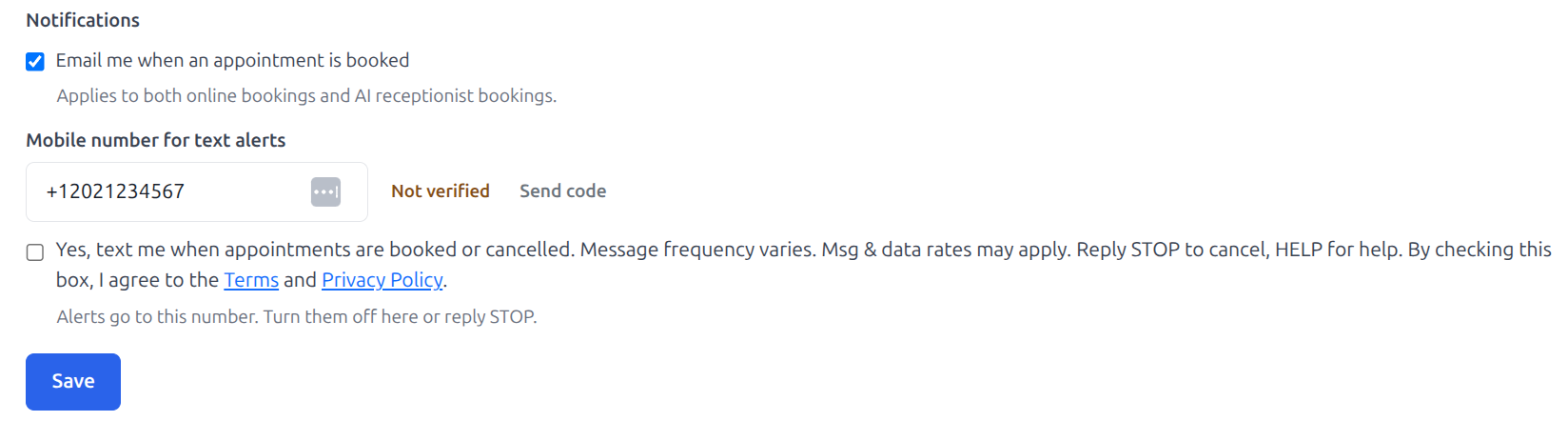
Step 2. Enable alerts (Business Settings → Notifications)
Existing account holders who did not opt in at sign-up can opt in later in Business Settings → Notifications. Only the business owner can change this page; team members see the setting read-only. The mobile number field, the separate, unchecked-by-default checkbox and the disclosure are on the same settings form. The owner can save the checkbox checked only after the number shown above it is confirmed with a code. The label text is:
For field-service businesses, the event wording is “visits” (scheduled calendar bookings). New work requests do not trigger text alerts. The label text is:
Example alerts sent after opt-in:
Opting out and help
Anyone who receives a message can reply STOP to unsubscribe or HELP for support information. The business owner can also turn alerts off in Business Settings at any time. Message frequency varies; message and data rates may apply.
Policies
- Privacy Policy, section 3: SMS communications, message frequency, rates, STOP/HELP, and the commitment not to share mobile information with third parties for marketing.
- Terms & Conditions, section 4: SMS program description and consent steps.
Customer-facing texts from a business number
When a business completes its own US carrier registration, appointment reminders and
similar messages to that business's customers are governed by a separate program.
Every registered business publishes its own text message terms page on its mini-site
at /site/<slug>/sms-terms.
On a business custom domain the same page is served at /sms-terms.
That page is not part of the FrontDesk account-alerts program described above.